
📰 Optimizing Your Digital Signage Web Content: Zoom and Refresh Controls
When displaying web content on your digital screens, achieving the perfect fit and ensuring content stays fresh is crucial. Your web page media settings offer powerful controls—specifically Zoom, Auto-zoom, and Refresh Interval—that allow you to fine-tune how web pages appear and behave across your signage network.
📐 Effortless Scaling with Auto-zoom (Screen Resolution)
The Auto-zoom feature is designed for maximum simplicity and compatibility.
-
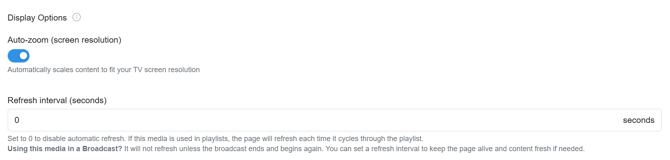
When enabled, Auto-zoom automatically scales your web content to fit the TV screen resolution.
-
This setting effectively removes the guesswork involved in manual scaling, ensuring that the webpage stretches or compresses appropriately to fill the display area without horizontal or vertical scrolling .
-
It's the recommended default for most deployments, guaranteeing a full-screen, clean presentation of your web media out of the box.
🔍 Precision Control with Zoom (Percent)
The Zoom (percent) setting gives you granular control over the size of the web content on the screen.

-
When the Auto-zoom feature is disabled, the Zoom percentage slider becomes active.
-
You can set the zoom to a precise percentage (e.g., 100%, 75%, 150%) to ensure the content looks exactly as intended, regardless of the screen's native resolution.
-
This is ideal for situations where you need to deliberately enlarge text or images on a high-resolution screen or shrink a page to ensure all elements fit within a designated zone without relying on automatic scaling.
🔄 Keeping Content Fresh with Refresh Interval (Seconds)
The Refresh Interval setting dictates how frequently the web page is reloaded by the player, which is vital for displaying dynamic, changing content.

-
In a standard playlist: Setting the interval to 0 (zero) means the page will refresh each time the playlist cycles back to that media item.
-
For extended broadcasts: If you are using the web page media in a Broadcast (which typically runs for an extended, uninterrupted duration), the page will not automatically refresh unless the broadcast ends and begins again.
-
By setting a value greater than zero (e.g., 300 seconds for 5 minutes), you force the player to keep the page alive and content fresh during long broadcasts. This is essential for showing real-time data, stock tickers, news feeds, or any content that updates frequently.
By strategically combining these display options, your operators can ensure web content is always presented at the correct scale and is reliably up-to-date across your entire digital signage network.