
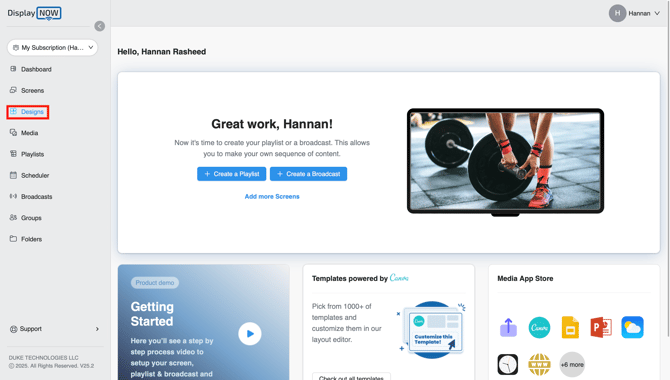
1. Navigate to Display NOW Manager > Designs.
- Click the "Designs" tab to access the area where all creative content is stored and managed.
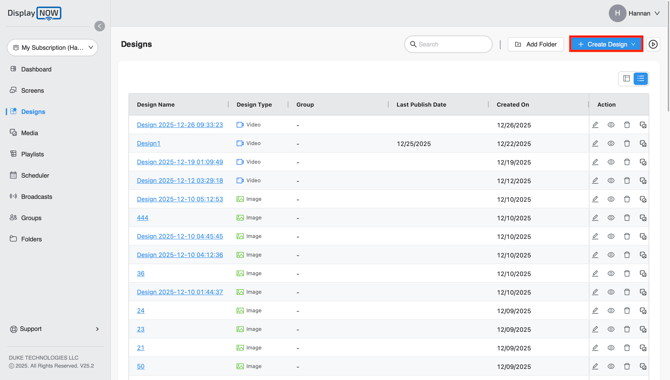
2. Initiate a New Design
- Within the Designs tab, click the "Create Design" button, which is located in the top-right corner.
- This action will start the process for creating new content.
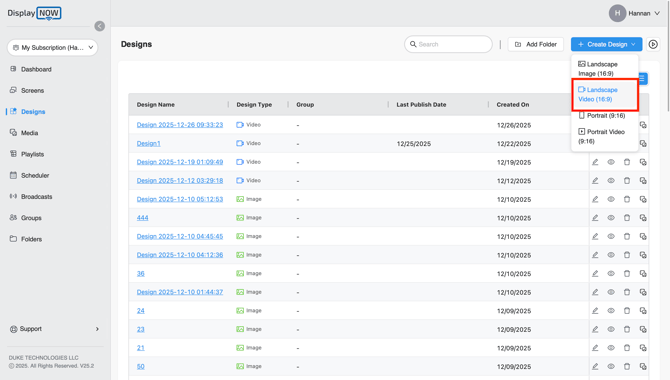
3. Choose Your Design's Orientation
After clicking "Create Design", a dropdown menu will appear.- Select the "Portrait Video (9:16)" option for a standard vertical format.
or - Select the "Landscape Video (16:9)" option for a standard widescreen format. For this article, we'll be selecting Landscape (16:9.)
4. Start creating your design
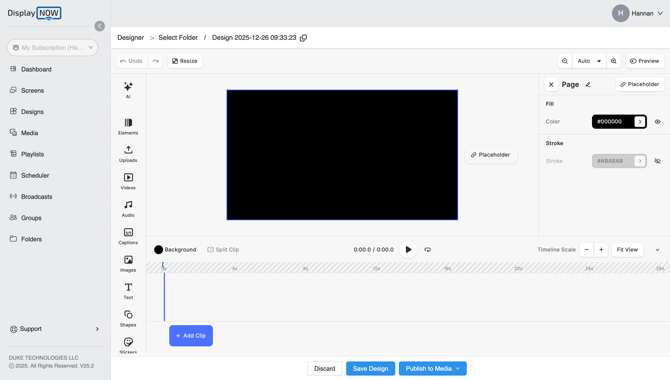
- You’ll be taken to the video design editor, where you’ll see a blank black canvas.
- This canvas serves as your workspace to create.
5. Add and Arrange Media
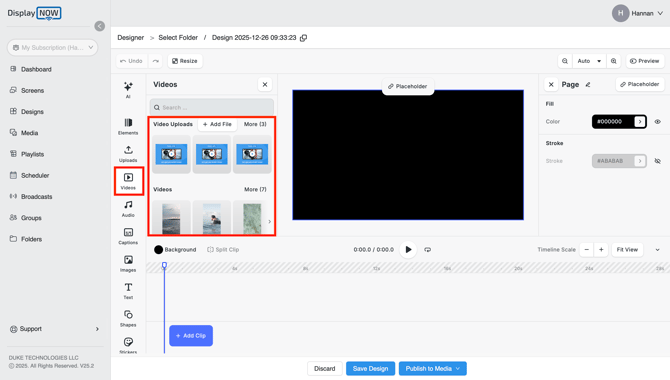
After clicking the "Video" tab
- Go to the Uploads and use "Add File" to import videos from your device.
or - Open the Videos to browse and select high-quality professional assets.
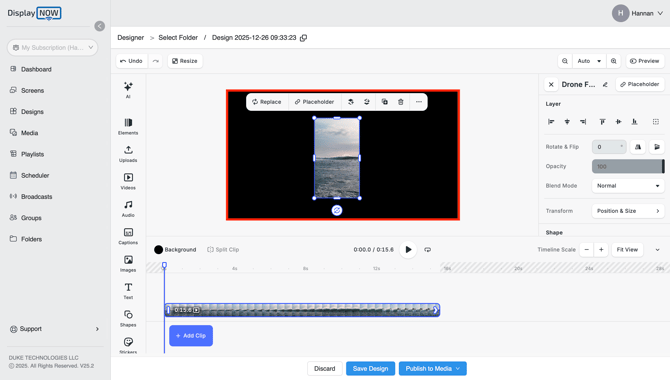
- Click and drag the corners of your video clip on the canvas to resize it
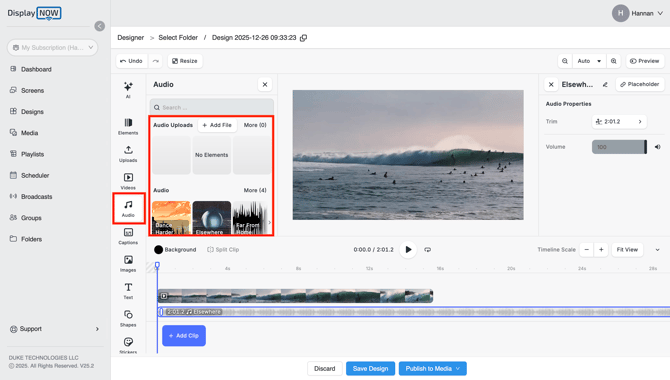
Select the "Audio" tab
- Add Audio: Enhance your video by selecting the perfect track onto your timeline. Select professional music from our stock library
or - Use the Uploads tab to add your own custom audio or voiceovers.
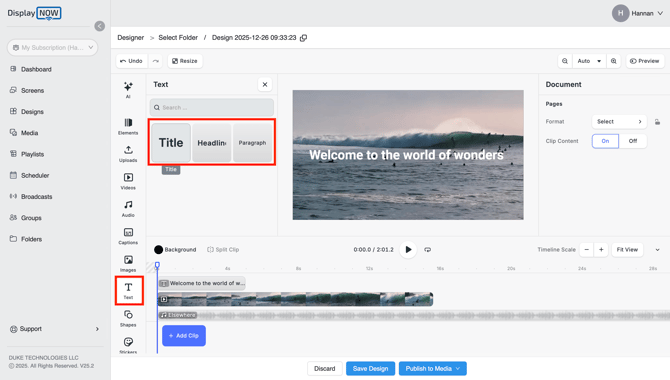
6. Customize with Text
-
Add Text Overlays: Use the Text tab to insert headlines or descriptions.
-
Pro Tip: For better visibility from a distance, use large, high-contrast, sans-serif fonts.
-
7. Edit the Video Timeline
-
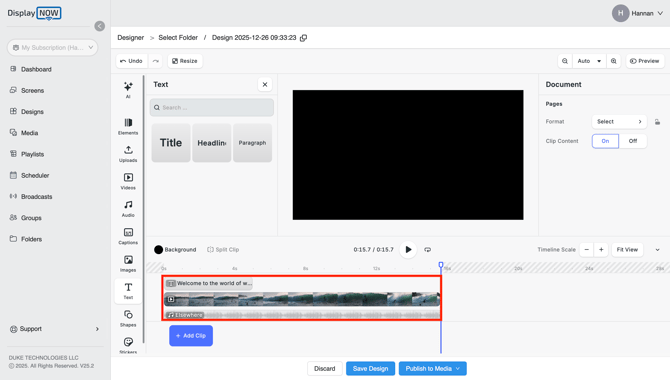
Adjust Timing: Select a clip in the timeline at the bottom to trim its duration by dragging the edges.
-
Sync Audio: If your display supports sound, add background music or voiceovers and align/trim them with your visual cues on the timeline.
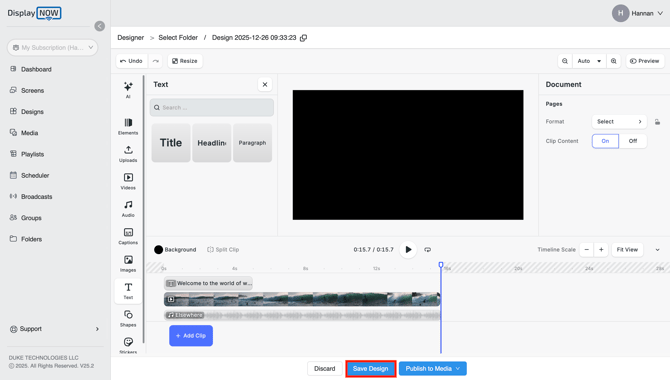
8. Save Your Design for Later
- If you want to save your progress and continue working on the design later, click the “Save Design” button. Your work will be stored and can be accessed from the main Designs tab at any time
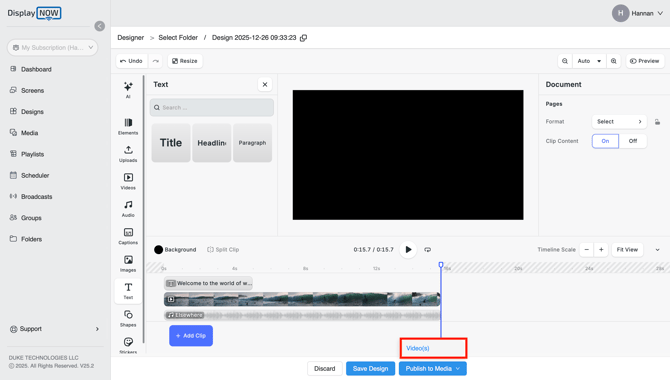
9. Publish Your Design to Media
- Once your design is complete and ready to be used, click the “Publish to Media” button. This action ensures your design is ready to be stored in your media library, allowing you to incorporate it into your playlist and showcase it on your screens.
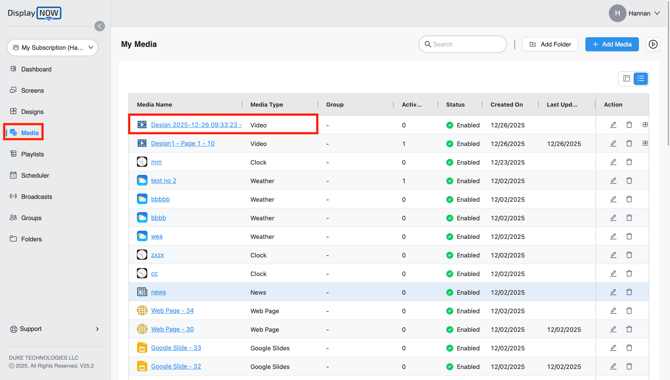
Step 10: Publish to a Playlist
- Navigate to "Media" tab and select your saved content.
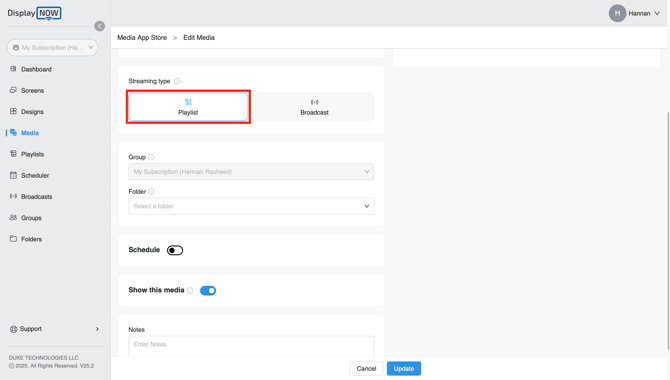
- Scroll down to the bottom of the page, then add the media to a playlist or broadcast. In this article, we will be using a "Playlist".
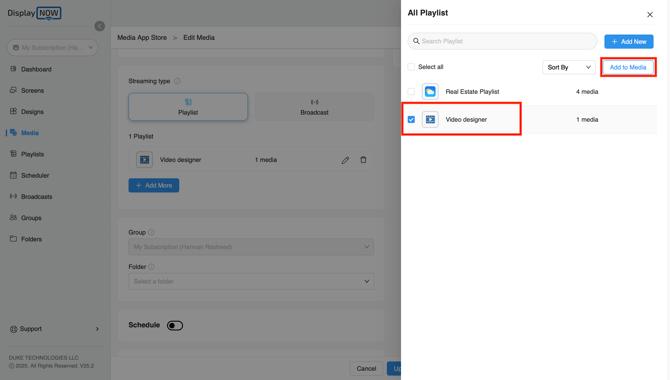
- On the right panel, select the playlist you want to add the content to(e.g., Video designer) and click "Add to Media".
- Click the blue "Save" button at the bottom of the screen to finalize the configuration and deploy the design.

With your design finalized, your content is ready for the big screen. Whether you’ve built a high-energy video or a clean, modern animated poster, the Display NOW video Designer gives you the tools to keep your audience engaged. Now, go ahead and push your creative vision live!