
Step-by-Step: How to Set Up Your Daily Loop
Setting up automated, professional content only takes a few clicks. Follow this guide to get started:
1. Enable the Subscription
-
Before adding the media, ensure the add-on is active in your account.
-
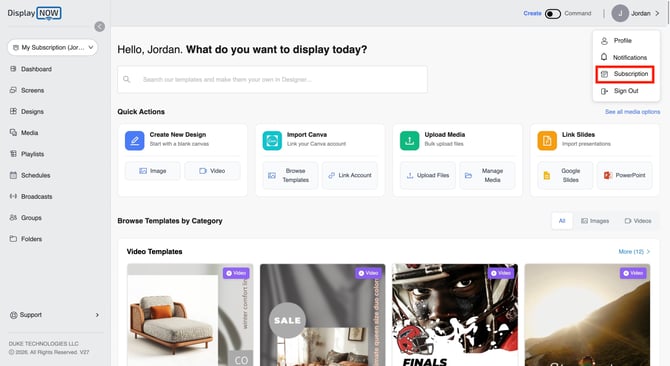
Navigate to your Profile (top right) and select Subscription.
-
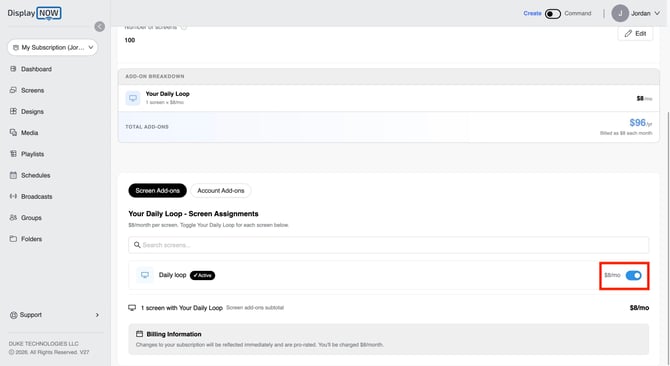
Under Screen Add-ons, find Your Daily Loop and toggle it to Active.
-
Note: This add-on is billed at $8/month per screen.
2. Add the Media from the App Store
-
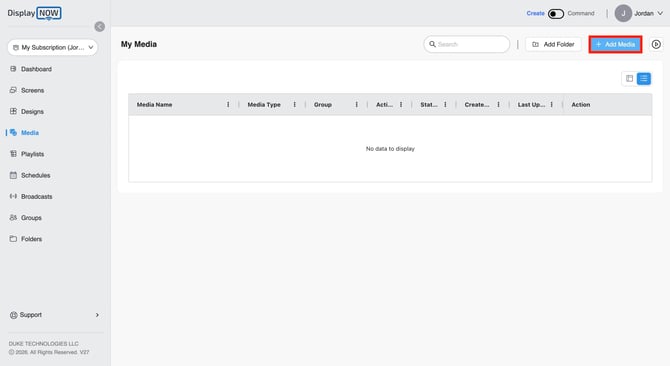
Go to the Media tab on the left-hand sidebar.
-
Click the blue + Add Media button in the top right.
-
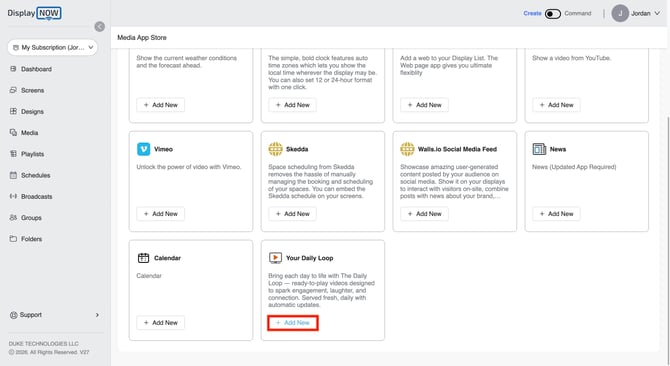
Scroll through the Media App Store until you find Your Daily Loop and click + Add New.
3. Customize Your Content
Once you select the app, you can tailor it to fit your brand’s "vibe":
-
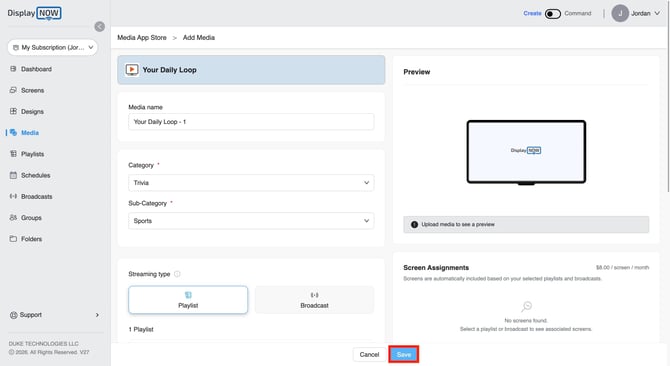
Select a Category: Choose from options like Trivia, Daily Engagement, or Entertainment & Social.
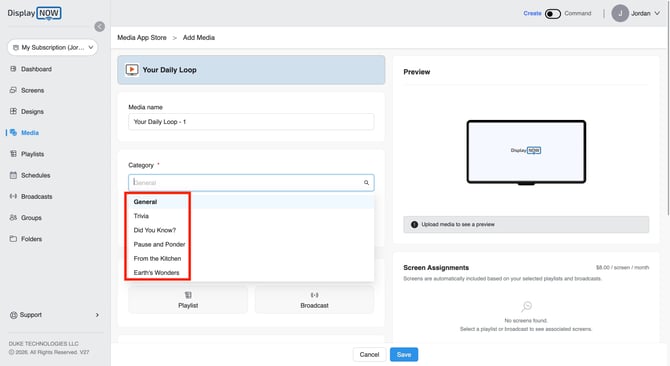
-
Choose a Sub-Category: If you select Trivia, you can narrow it down to Mixed Trivia, Sports Trivia or Pop Culture Trivia.
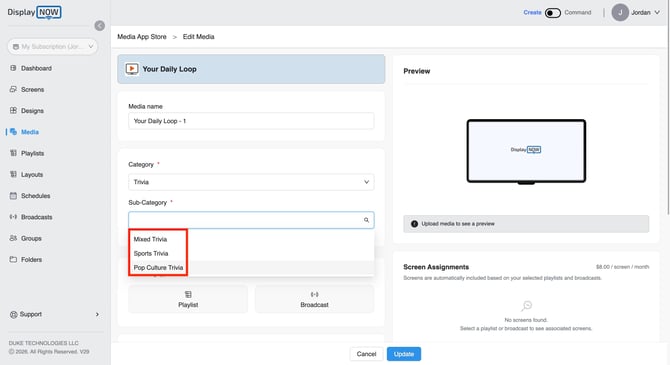
4. Select a Streaming Type
-
Choose your Streaming Type (For this article we will be using playlist)
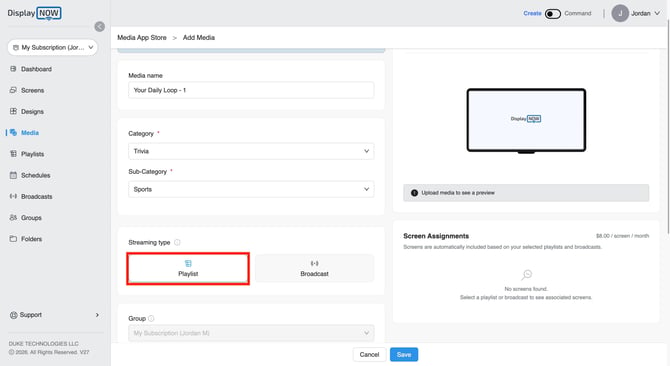
- From the list that appears, select the specific Daily Loop content you created.
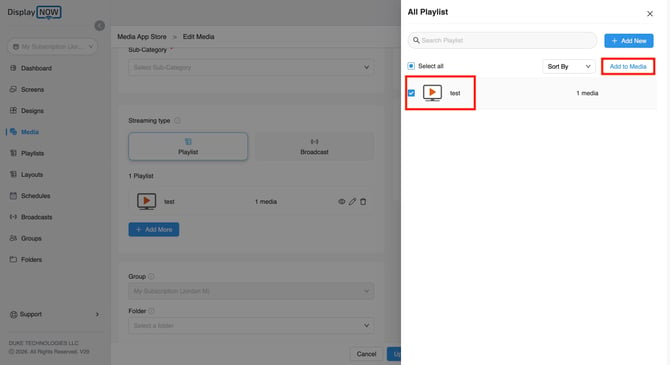
-
Click Save.
5. Add the content to your Daily loop Screen
Once your media is ready, you need to add them to your Daily loop screen.
-
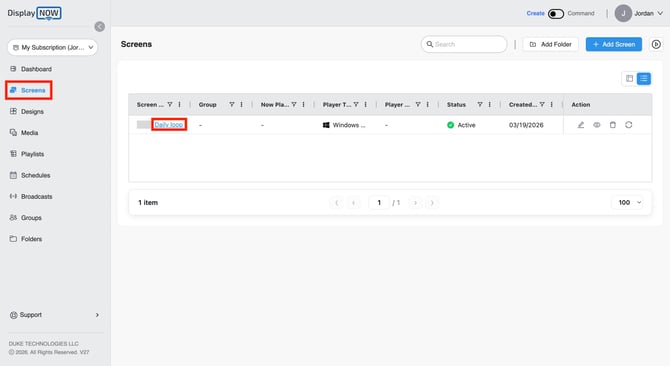
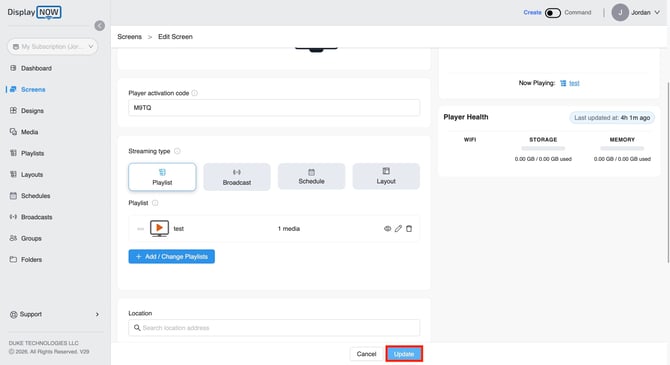
Navigate to Screens: Click on the Screens tab in the left-hand sidebar.
-
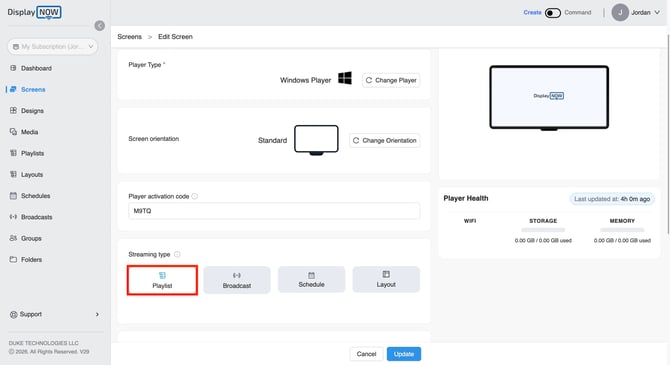
Head down to the Streaming Type, from there, pick Playlist/Broadcast.
-
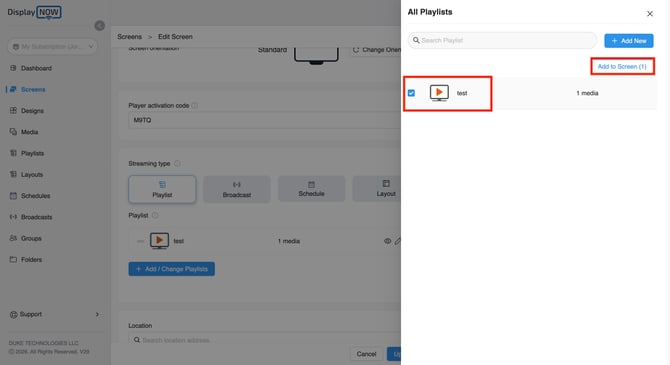
From the sidebar; select the Daily Loop Playlist you created earlier.
-
Click the blue Update button at the bottom of the page.
By following these steps, you can transform your digital signage from a static display into a dynamic, automated information hub. By integrating Your Daily Loop with the Display NOW platform, you ensure your audience stays engaged with fresh trivia, facts, and world-class visuals all without the manual work of daily content creation.