
Step 1. Display NOW Manager > Media
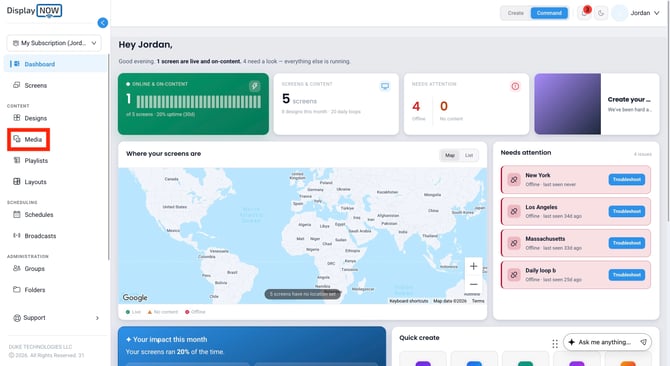
- From the left sidebar, open Media.
Step 2. Media > Add New > Add Media
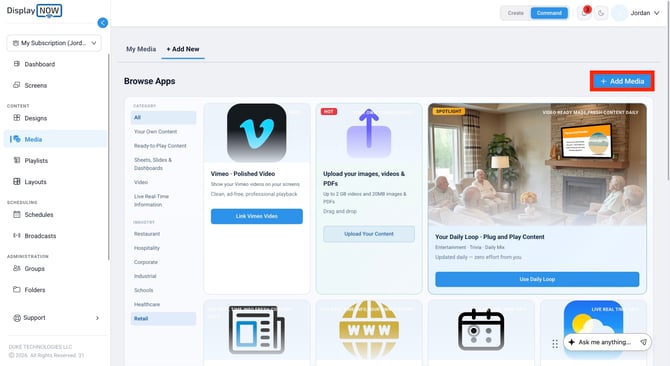
- On the Media page, open the + Add New tab to open the Media App Store.
Step 3. Media App Store > Google Traffic
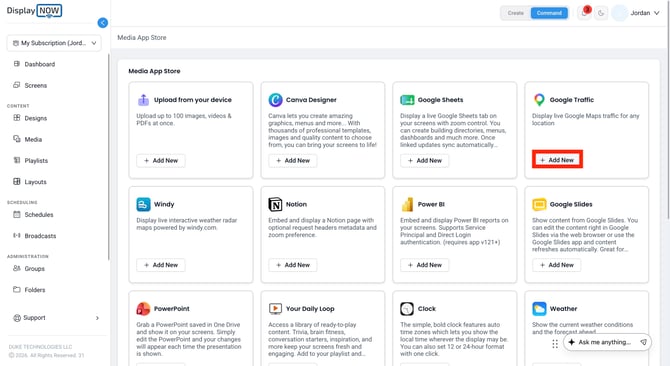
- Locate the Google Traffic app (Display live Google Maps traffic for any location).
- Click Add New to open the setup panel.
Step 4. Name the media
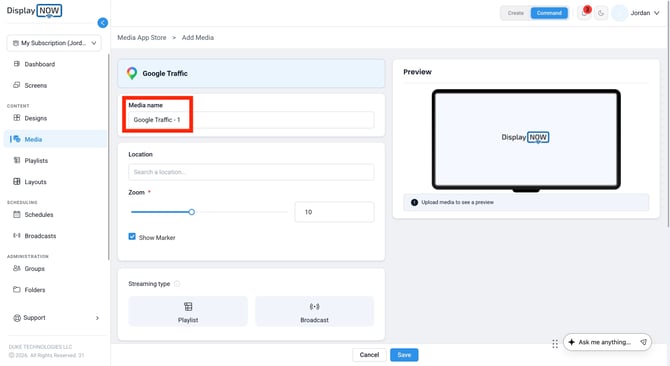
- The Media name field is pre-filled (for example, Google Traffic - 1).
- Edit it to something you'll recognize later, especially if you plan to add more than one traffic map.
Step 5. Set the location
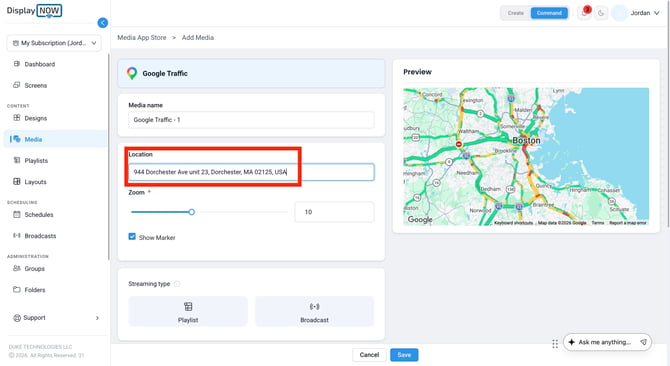
Under Location, enter the full address you want the map centered on (for example, Boston City Hall, 1 City Hall Square, Boston, MA 02201, USA).
- Start typing and select the matching address so the map resolves to the right spot.
- The Preview panel on the right stays on a placeholder until a valid location is set, then loads the live traffic map.
Note: Location drives the map. The Preview won't populate until a valid address is selected.
Step 6. Set the zoom level
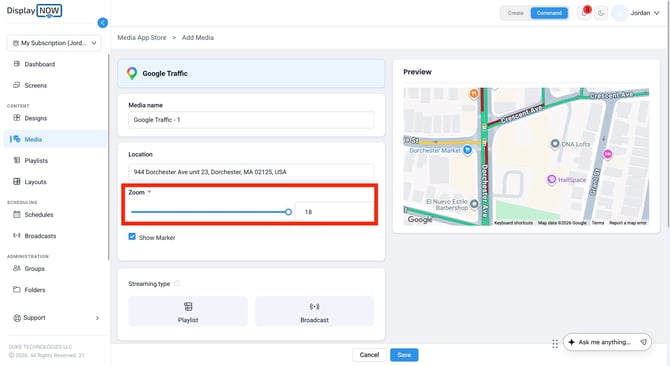
Use the Zoom slider, or type a value in the box beside it, to control how tightly the map frames your location.
- Lower values show a wider regional view, good for traffic across a whole metro area. Higher values zoom in toward street level.
- Watch the Preview as you drag and stop at the framing that reads best on-screen.
Note: Zoom is required.
Step 7. Choose how it plays
-
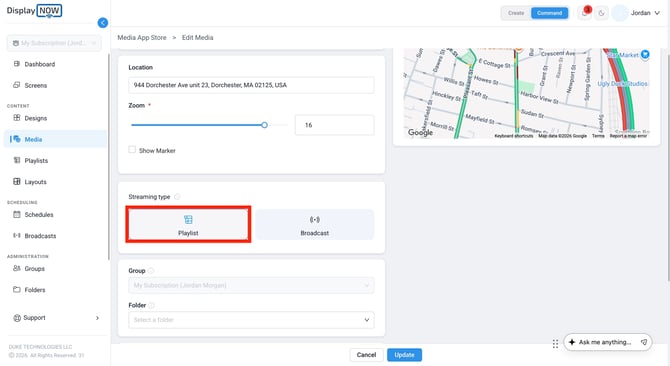
Under Streaming type, select Playlist so the map rotates alongside your other content in the screens where you add it. (Broadcast pushes the map out as a broadcast instead.)
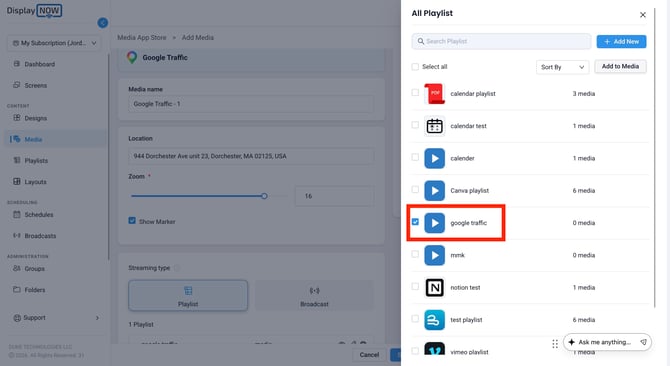
- In the All Playlist panel, search for and check the playlist you want (for example, google traffic).
- Click Add to Media.
The selected playlist appears under one Playlist, where you can preview, edit, remove it, or click Add More to include others.
Step 8. Confirm visibility and save
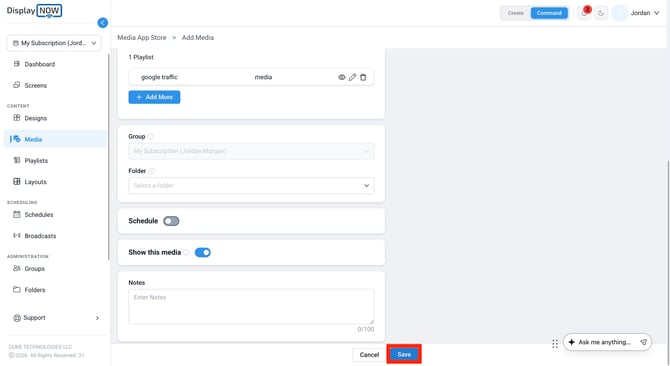
- Group and Folder are optional. Assign them if you organize your media that way.
- Leave Schedule off unless you want the map to play only during set times.
- Keep the Show this media toggle on so the map is live and available to add to screens.
- Add Notes if you like, then click Save. The Google Traffic map is now in your media library, ready to drop into a playlist or broadcast.
Why It Matters?
A live traffic map turns any screen into a genuinely useful, always-current display, perfect for lobbies, transit-adjacent waiting areas, and storefronts where people want a quick read on the roads around them. Set the location and zoom once, and the map keeps itself current.
Need a hand? Reach us any time at support@displaynow.io.