![AndroidAppLogo-R2_1960x720-3.png]](https://help.displaynow.io/hs-fs/hubfs/AndroidAppLogo-R2_1960x720-3.png?width=250&height=92&name=AndroidAppLogo-R2_1960x720-3.png)
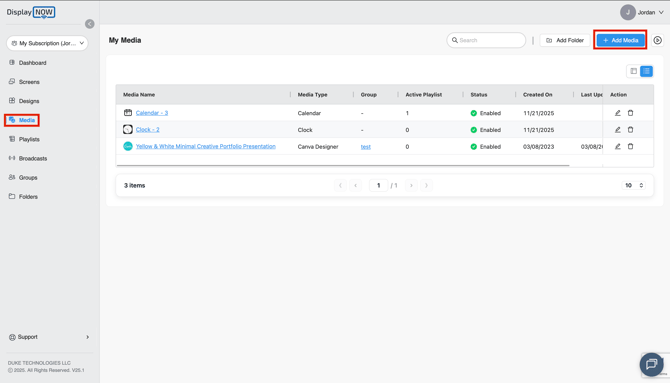
Step 1: Navigate to Display NOW Manager > Media
- Navigate to the Media section from the left-hand side menu.
- Click on the + Add Media button in the top right corner.
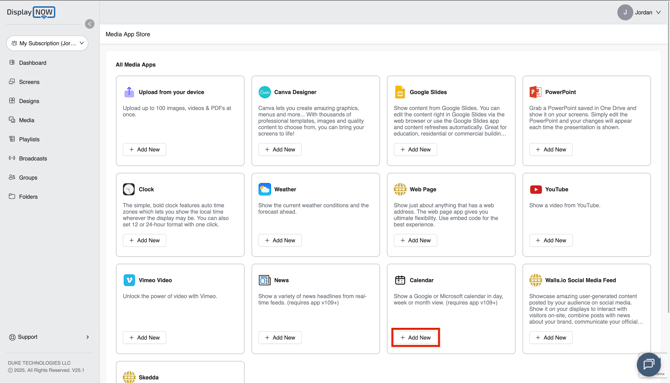
- In the Media App Store, locate the Calendar tile and click + Add New.
Step 2: Connect Your Calendar Account
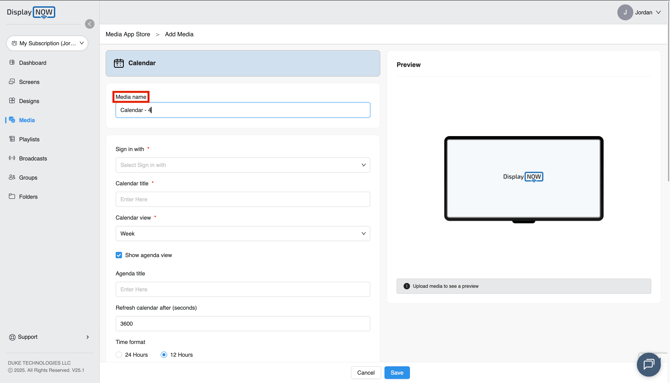
- In the Add Media configuration window, name your media.
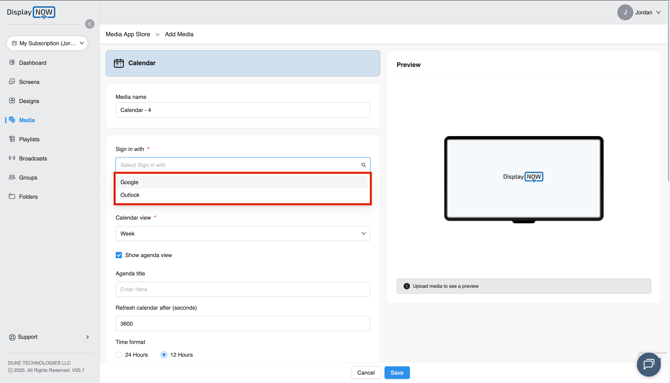
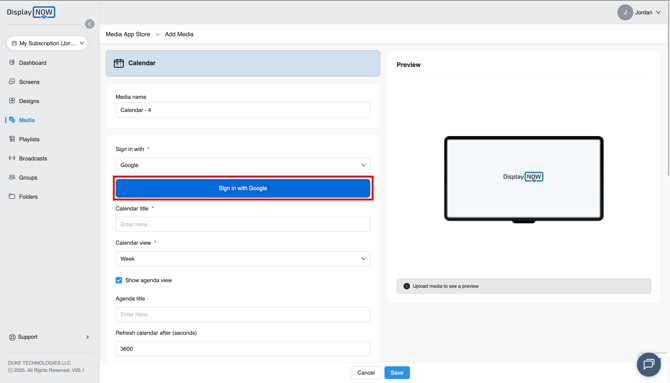
- Under Sign in with, select your provider (Google or Microsoft Calendar) from the dropdown menu.
- Click the blue Sign in with Google (or equivalent) button and follow the prompts to authorize access to your calendar.
Step 3: Select the Calendar and Set the Title
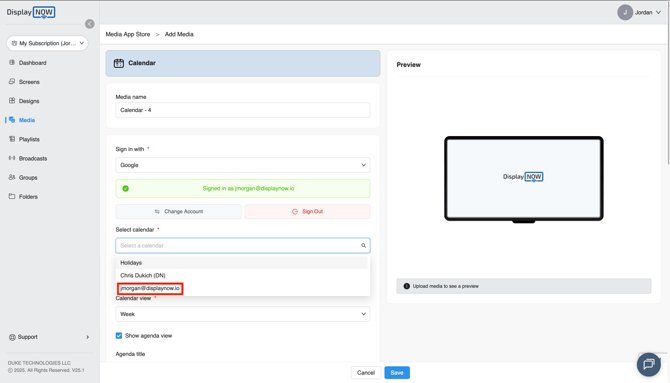
- Once signed in, use the Select calendar dropdown to choose the specific calendar you wish to display
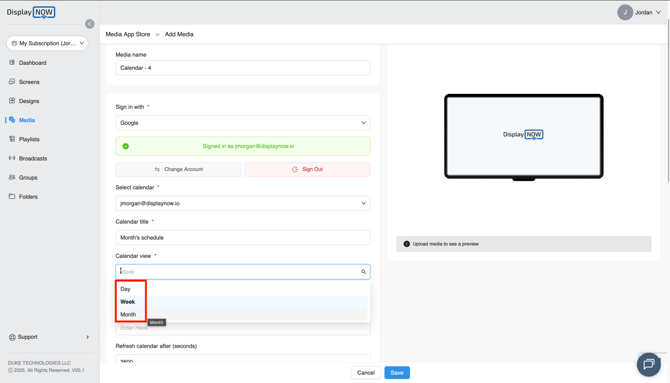
- Enter a title for the display in the Calendar title field.

Step 4: Choose the Calendar View and Agenda Options
- Use the Calendar view dropdown to select how the events will be presented. Options include Day, Week, or Month.
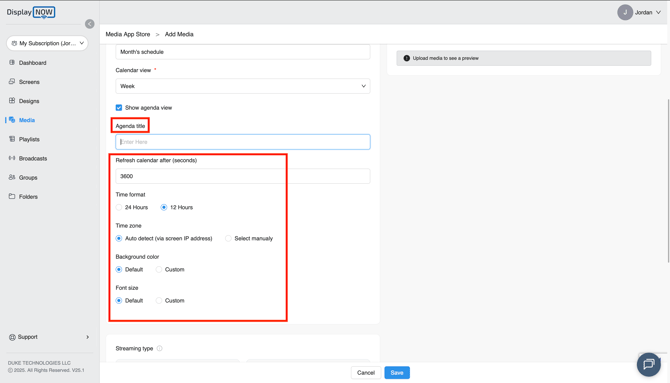
- Check the Show agenda view box if you want a list of upcoming events displayed. You can also optionally enter an Agenda title.
- Adjust the Refresh calendar after (seconds) and Time/format as needed.
Step 5: Save and Publish to a Playlist
- Scroll down to the bottom and put the media in a playlist or broadcast.
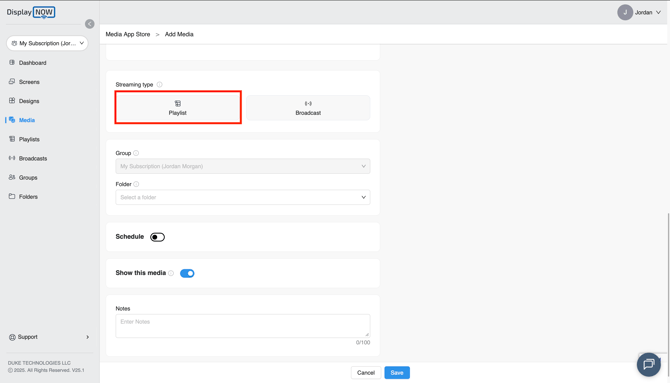
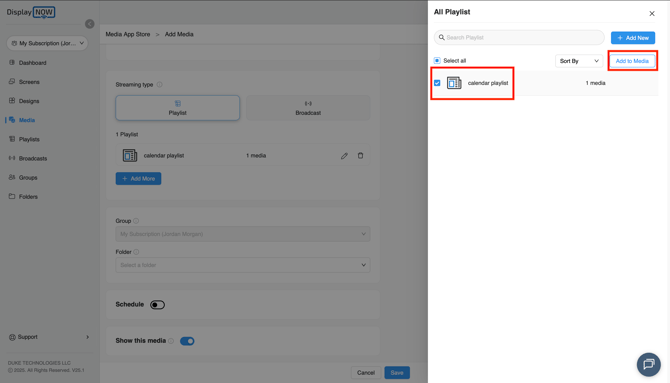
- On the right side, select the calendar media and select Add to Media
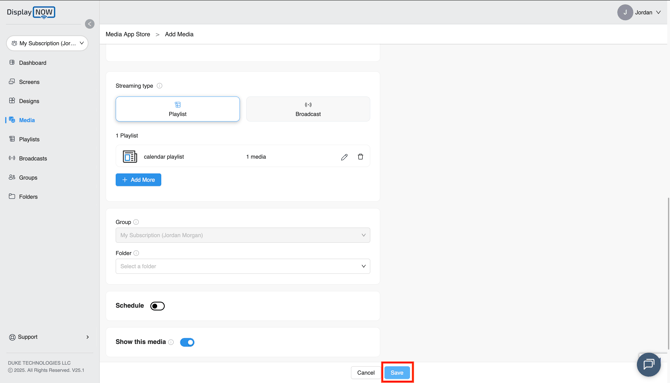
- Once you're done, click the blue Save button on the bottom of the screen.
Your calendar is now fully connected, configured, and ready to shine on your digital signage screens. Whether you're displaying daily schedules, weekly overviews, or a full monthly calendar, this integration helps keep your team and audience effortlessly informed.