
Step 1: Navigate to Display NOW Manager > Layouts.
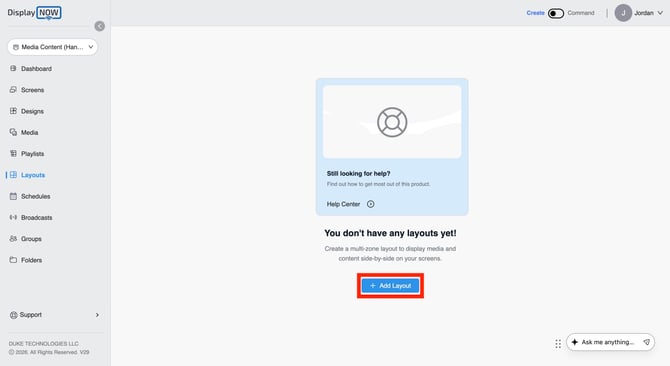
- On the Layouts page, click the blue + Add Layout button.
Step 2: Name your layout and choose a layout type.
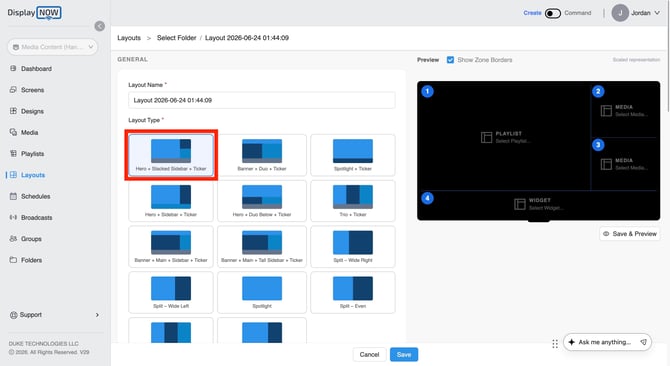
- Enter a descriptive Layout Name (e.g., "Lobby — Hero + Sidebar + Ticker"). It's pre-filled with a date and time by default.
- Under Layout Type, select the template that matches the zone arrangement you want for example, Hero + Stacked Sidebar + Ticker,
- A short description appears below your selection explaining what that layout is best for.
Step 3: Set the orientation and choose your screen(s).
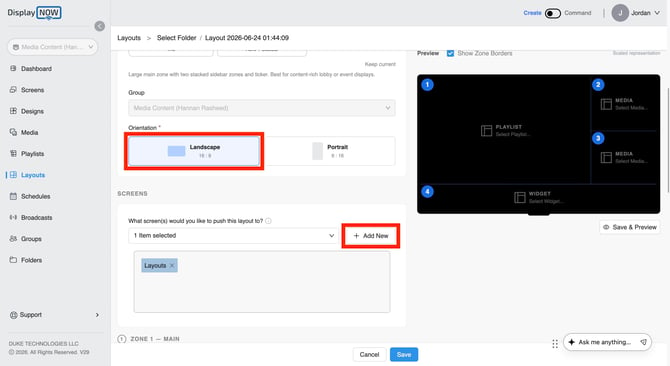
- Confirm the Group (set automatically based on your media group).
- Under Orientation, choose Landscape (16:9) or Portrait (9:16) to match your display.
- Under SCREENS, use the "What screen(s) would you like to push this layout to?" Dropdown to select an existing screen, or click + Add New to add one.
Step 4: Set up your zones and add content
-
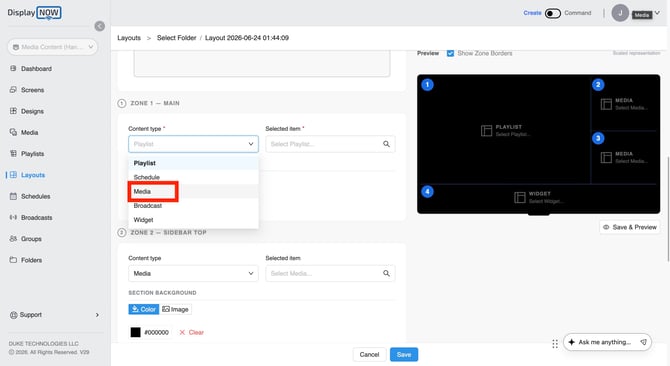
The layout type you picked determines the zones you'll fill (for example: Zone 1 - Main, Zone 2 - Sidebar Top, Zone 3 - Sidebar Bottom, Zone 4 - Ticker). For each zone:
- Choose a Content type from the dropdown: Playlist, Schedule, Media, Broadcast, or Widget.
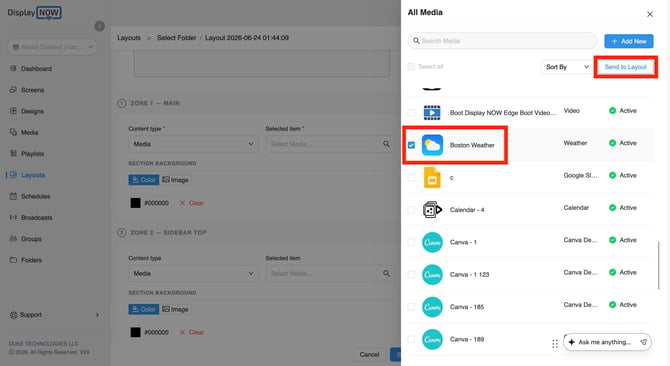
- Pick your Selected item:
- Media: The All Media panel opens on the right. Search for your item, check the box next to it (e.g., Boston Weather), then click Send to Layout.
- Repeat steps for Zone 2 - Sidebar Top, Zone 3 - Sidebar Bottom.
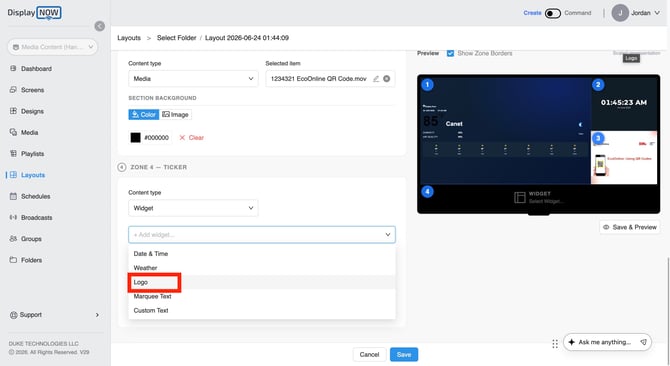
- In Zone 4 - Ticker, set the Content type dropdown to Widget.
- Click the + Add widget... dropdown and select a widget. For this example, choose Logo.
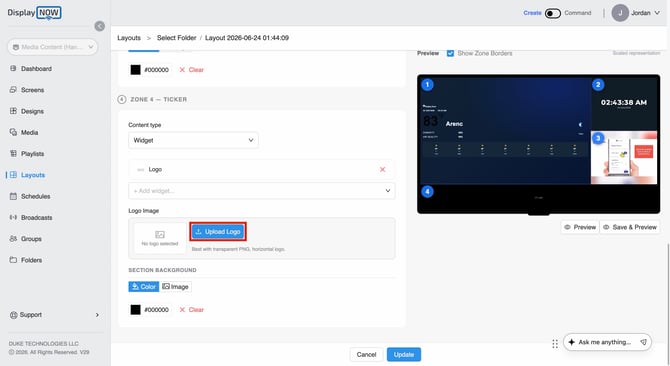
-
Under Logo Image, click Upload Logo (best with a transparent PNG, horizontal logo).
Step 5: Preview and Save.
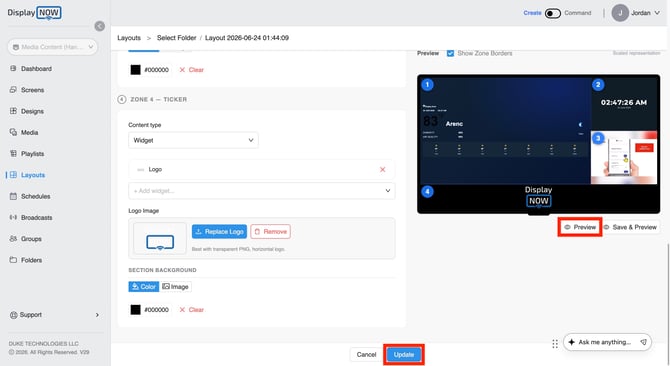
-
Use the live Preview panel on the right to check your layout.
- When everything looks right, click the blue Update button at the bottom to finalize and push the layout to your selected screen(s).
By following these steps, you can build dynamic, multi-zone layouts that combine video, playlists, weather, clocks, and branding all on one screen, no extra hardware required. The final Save step ensures your screens are always showing the latest version of your work. Stuck? Chat with us or email us at support@displaynow.io and we'd be happy to assist.