
Alternative: Link Google Slides Without Signing In
If you do not want to sign in with Google, you can grab the embed publish link from Google Slides directly.
Step 1: First, sign in to Google Slides. You can start a new presentation or open an existing one.
-
Click on File > Share > Publish to the web
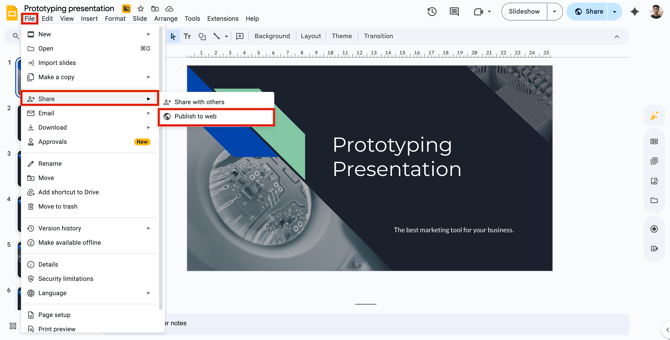
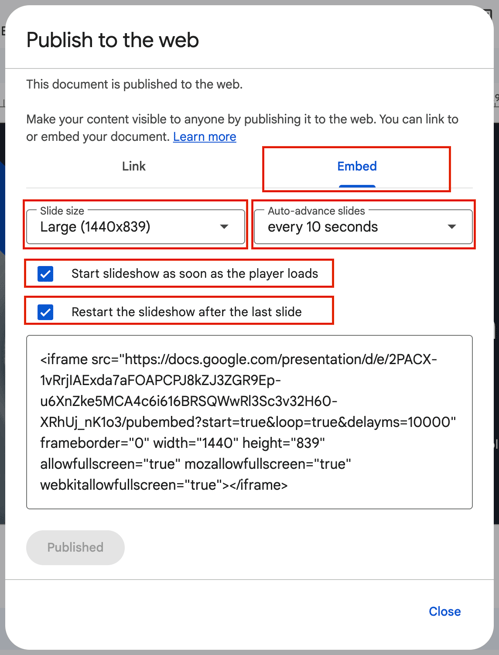
- Select the "Embed" option
- Select your Slide Size.
- Select how long you want each slide to stay on the screen. In this example, 10 seconds has been chosen for each slide.
-
Check the two boxes below: start as soon as player loads and restart the slideshow after the last slide. This keeps the presentation moving in the background as other content is shown.
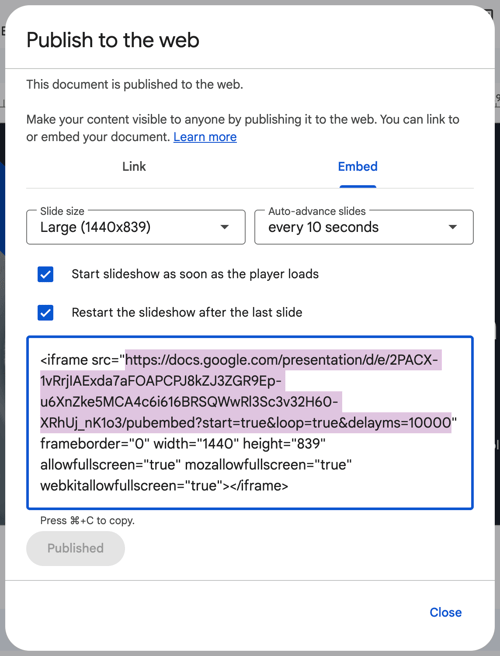
- Then copy the link from the start of the quotation to the end of the quotation. Just as highlighted in the picture below.
Step 2: Navigate to Display NOW Manager > Media App Store > Google Slides
- Name your media.
- Add the copied embed link to the "Google slides Embed URL."
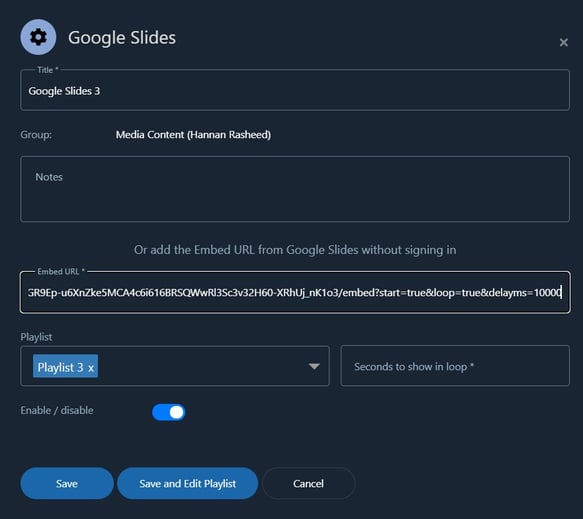
- In order to complete your URL, please add ( &rm=minimal ) at the end of it.This hides the controls in your Google Slides, allowing your slideshow to play seamlessly.
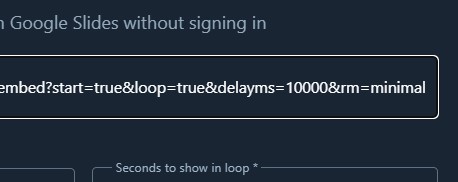
- Once done, please select your playlist and add the total number of seconds that content will be played for. Adding up the number of slides and how many seconds each slide will be played for like, 10 slides + each slide for 15 seconds = Total of 150 seconds.
- Click on "Save"
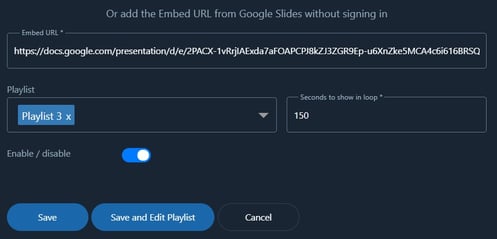
Step 3: Add/Edit the Playlist
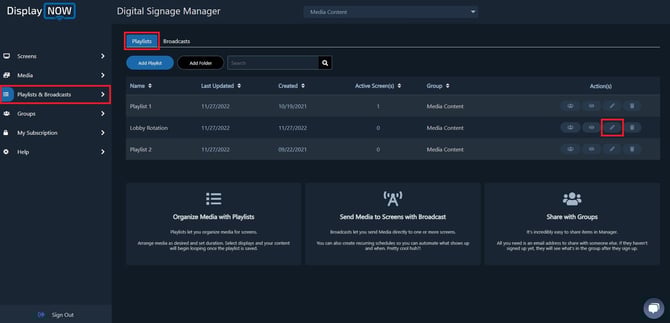
- Head over the Playlist option and select your Playlist and click on Edit.
- You can also create a new playlist if you'd like.
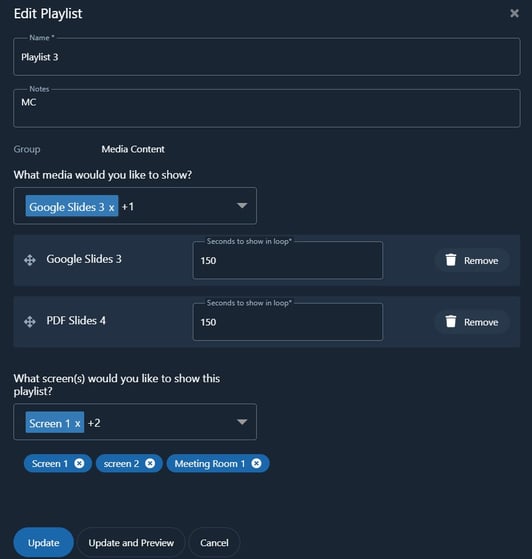
- Google Slide will already show up on your playlist.
- You can also add your number of seconds from here or change them.
- Click "Update" and you're all set. The Media then will be display on your screens.
- This is how your Google Slides presentation will appear on your screen. It will continuously loop through every slide in your Google Slide deck in sequence.

Any time you update your Google Slides, the changes will automatically appear on your screen in real time. There's no need to keep re-uploading or adding the updated content to the Display NOW Manager.